
You can create two types of lists in Instacart:
- Shopping list - Your personal list for weekly essentials
- Saved lists - Reusable, shareable lists for your favorite items
You can make personal, shareable, and reusable shopping lists to easily buy your favorite items. Saved lists can be public or private, but both are shareable with friends and family.
Private lists are not searchable, not discoverable, and can only include one store. Public lists are searchable and can include multiple stores.
Shopping lists
The Shopping List helps you build your cart faster. You can add items in many ways.
If you have an iOS device, you can use Siri or Spotlight Shortcuts to add items directly to your Shopping list in the Instacart app. Just say “Siri, add [item] to Instacart” or search “Instacart” on your device and tap Add to list. Tap View list to open your list in the app.
Once you’re in the app, you can access your shopping list in 2 places—
|
Search bar |
In header |
|
|
|
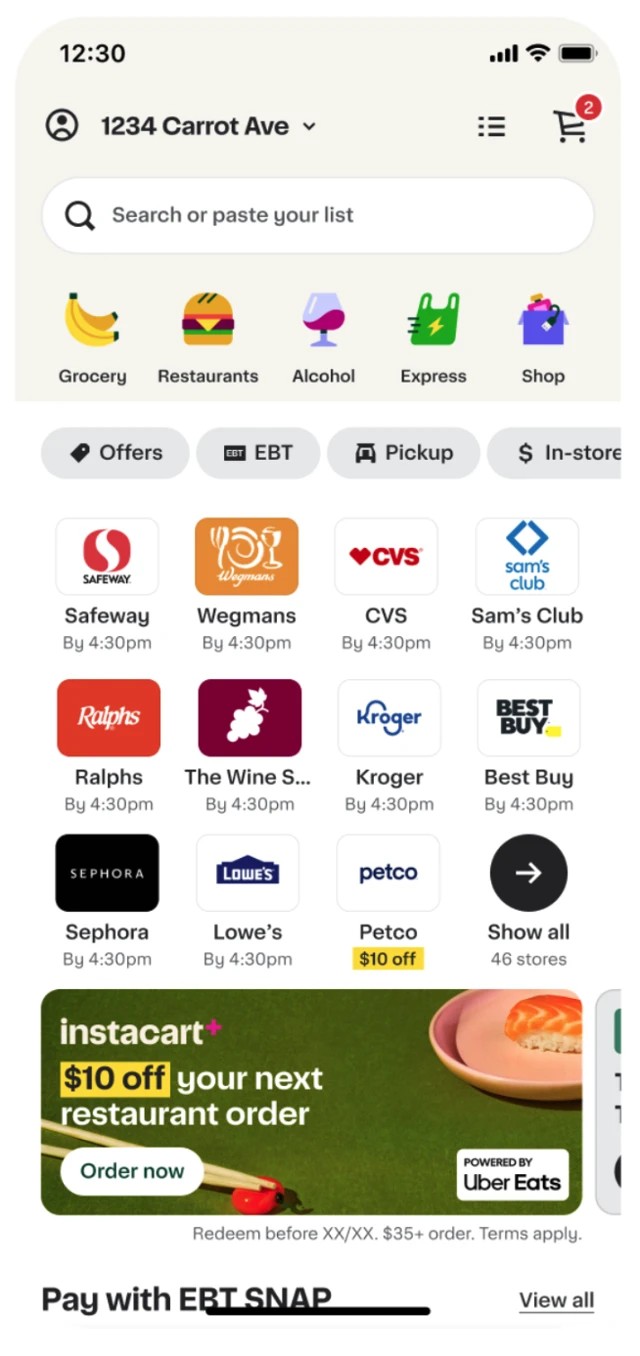
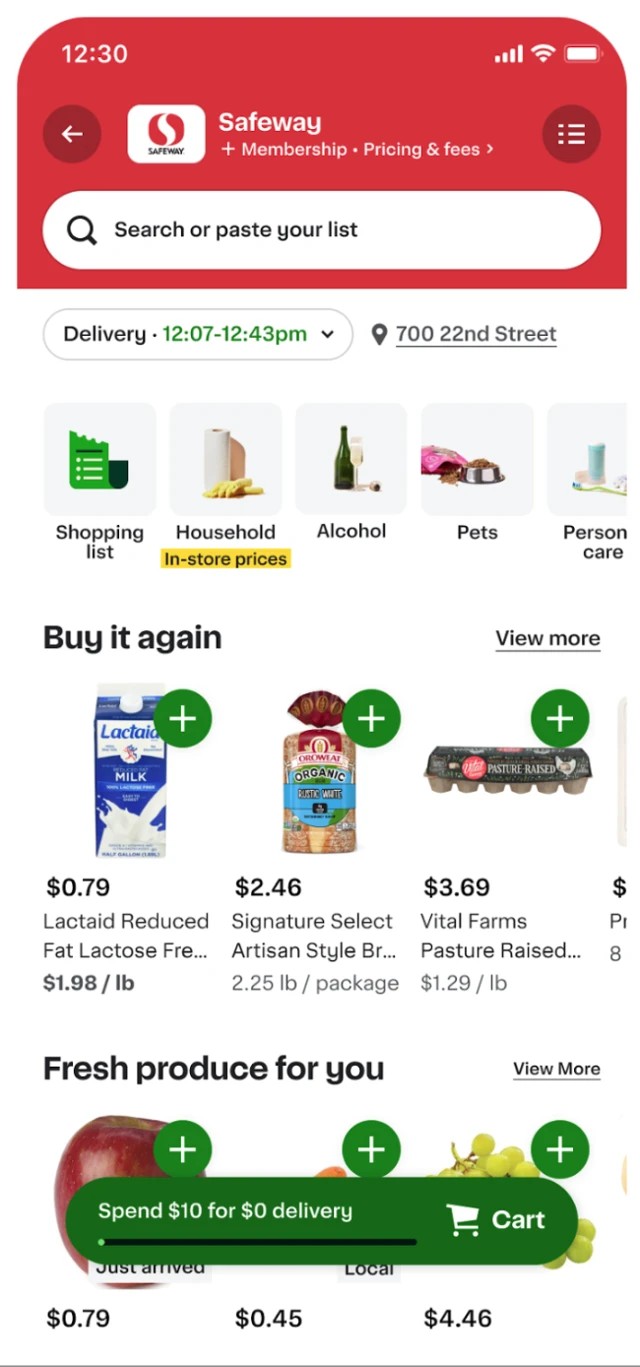
On the Shopping list screen, search for the items you want to add or choose an item from the Suggested list. Tap the green + icon to add the item to your cart.
You can also access your shopping list under: Account > Shopping List > Collections
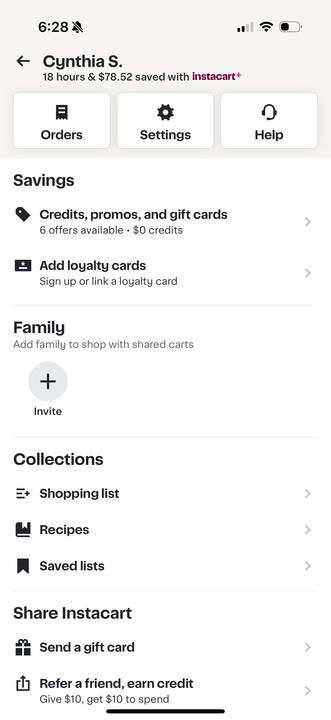
Ways to add items to your shopping list
Take a Photo
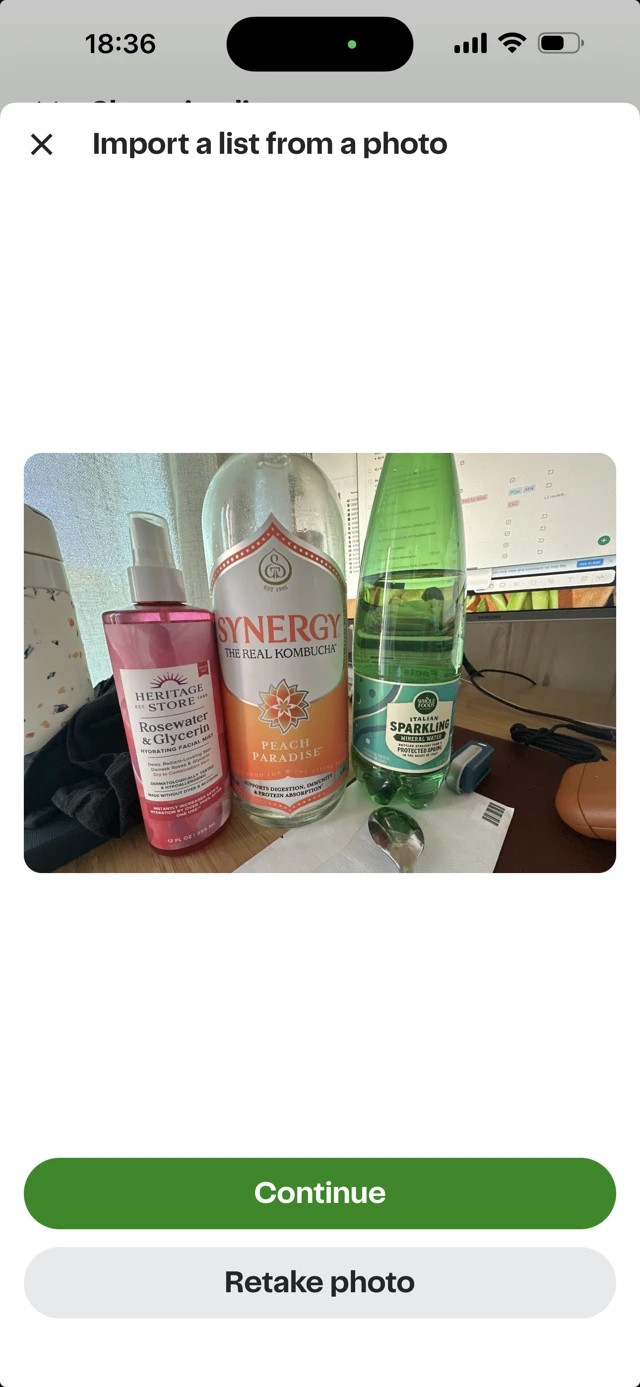
Take a photo of your paper list, recipe, or pantry items.
What you can photograph:
- Handwritten shopping lists
- Printed recipes showing ingredients
- Screenshots of recipes
- Multiple pantry items you want to buy
How it works:
- Open your Shopping List
- Tap "Add by photo"
- Take a clear photo of your list or items
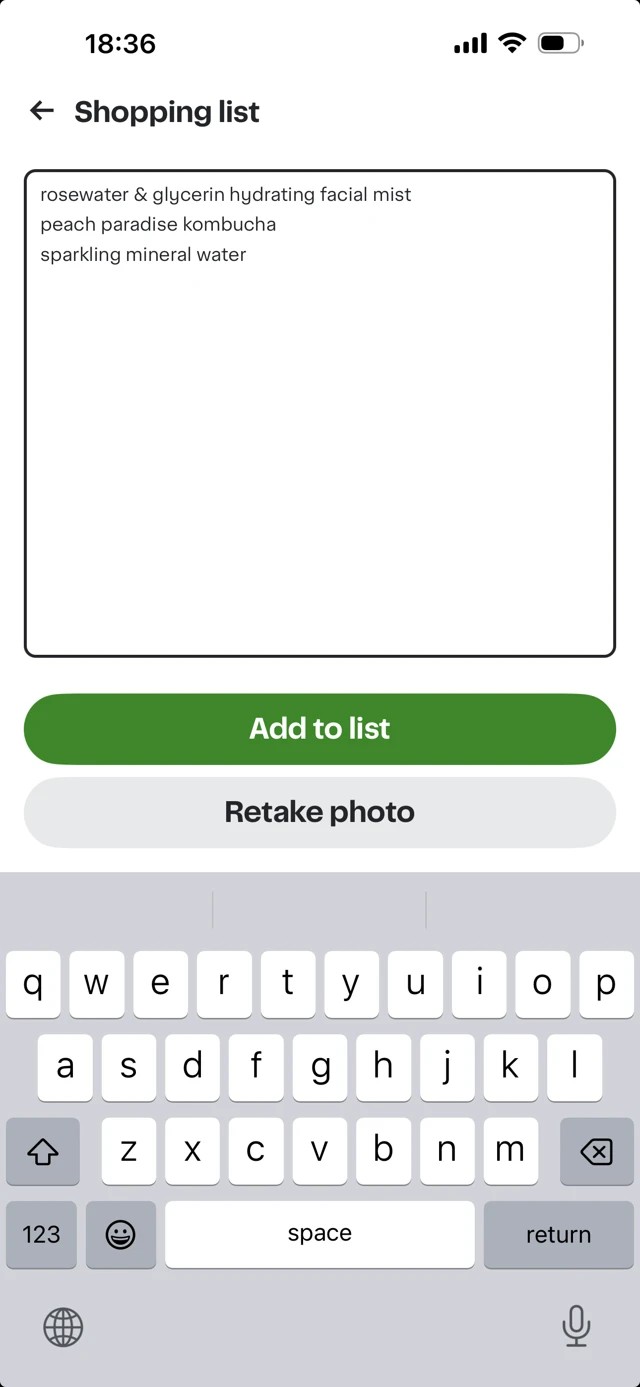
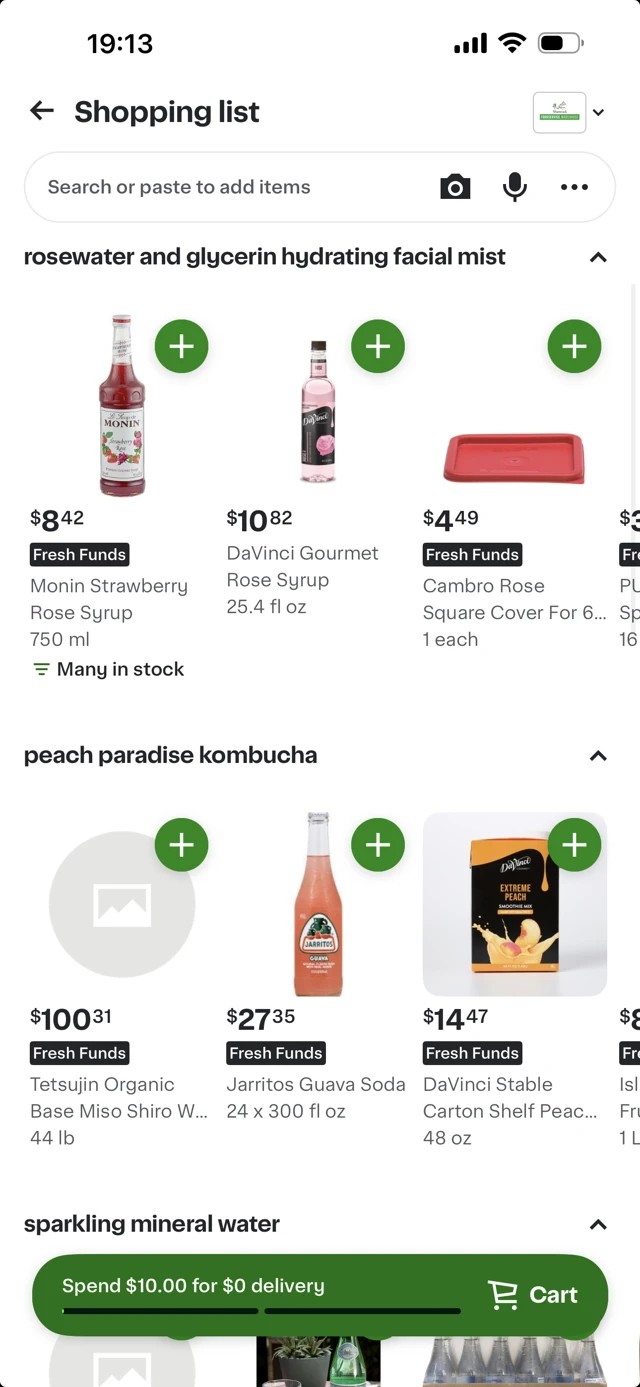
- The app reads your photo and adds items to your list
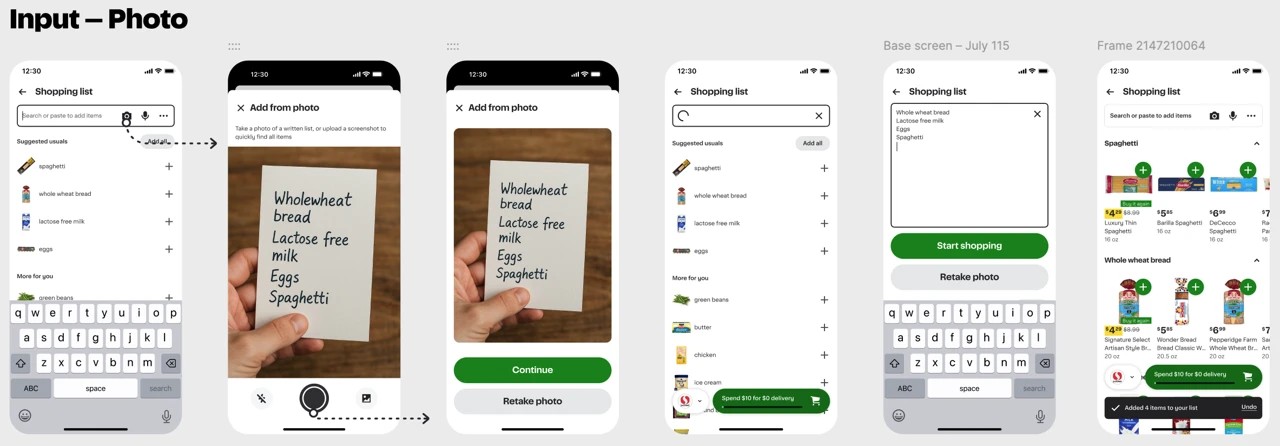
If the photo quality is poor:
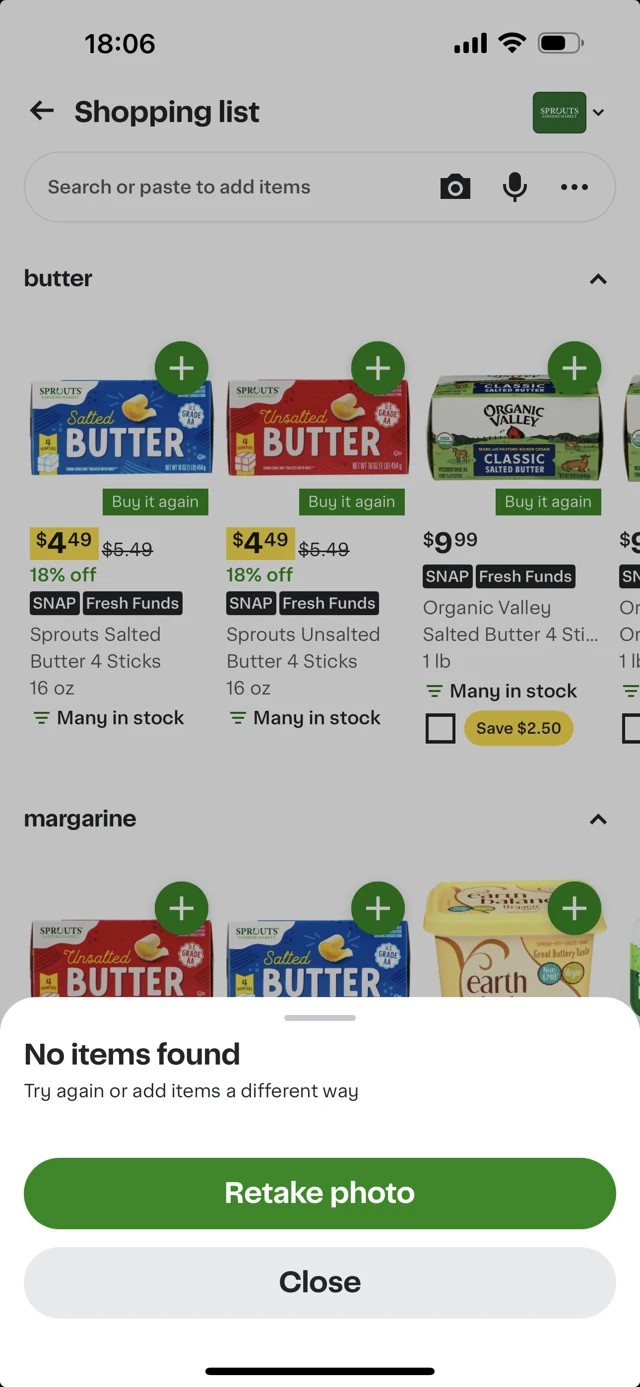
The app will show: "No items found. Try again or add items another way."
Tap "Retake photo" to try again with better lighting or a clearer view.
Copy and Paste Text
Paste your list from anywhere - notes, emails, texts, or websites.
How it works:
- Copy your list from any source
- Open your Shopping List
- Tap "Paste items"
- Paste your text
- The app reads your text and adds items to your list
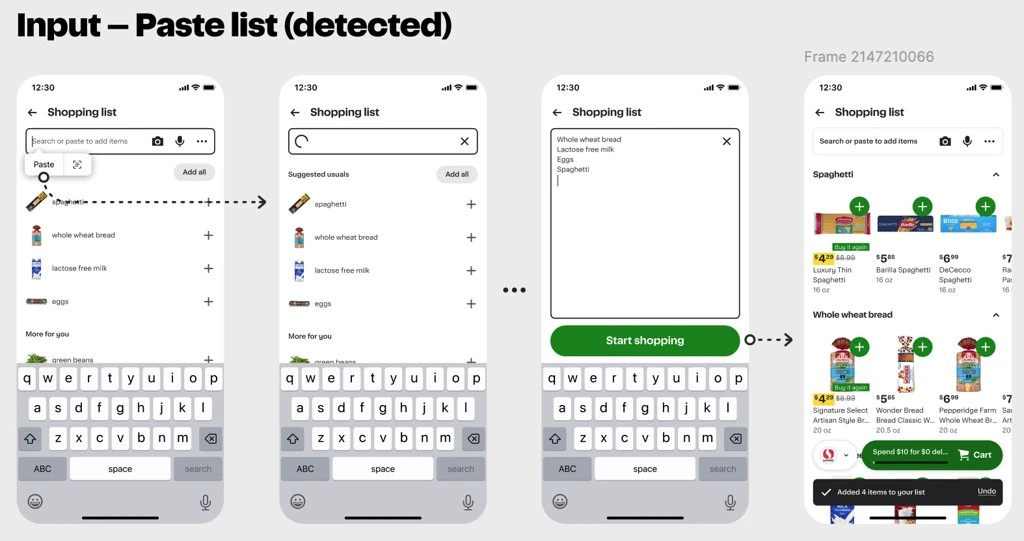
Format tips:
- You can list items on separate lines
- You can separate items with commas
- You can even paste items without any separators - the app figures it out!
Item limit: 200 items per paste
Some example formats that work:
|
Example 1 Peanut butter |
Example 2 Peanut butter, bananas, jelly, water |
Example 3 peanutbutterbananasjellywater |
Import from Reminders App (iOS only)
Link your Apple Reminders to add items from your existing reminders.
How it works:
- Open your Shopping List
- Tap "Import from Reminders"
- Choose which reminders list to import
- Items from your reminders appear in your Shopping List
Please note: You will need to manually import reminders each time. The app doesn't sync automatically yet.
Use Siri (iOS only)
Say “Siri” add [item] to Instacart to add items hands-free.
How it works:
- Say: "Hey Siri, add milk to Instacart"
- Siri confirms the item was added
- The item appears in your Shopping List
You can also:
- Search "Instacart" on your iPhone
- Tap "Add to list" in Spotlight
- Type or say the item name
- Tap "View list" to open the app
Type Items in the app
Search and add items one at a time directly in your Shopping List.
How it works:
- Open your Shopping List
- Search for items you want
- Tap the green + icon to add each item
- Or choose from the "Suggested" list
Add Items to Your Cart
Once your list is ready, add items to your cart in seconds.
How it works:
- Open your Shopping List
- Tap "Add all items to cart" to add everything at once
- Or tap the + next to each item to add items one by one
- Proceed to checkout
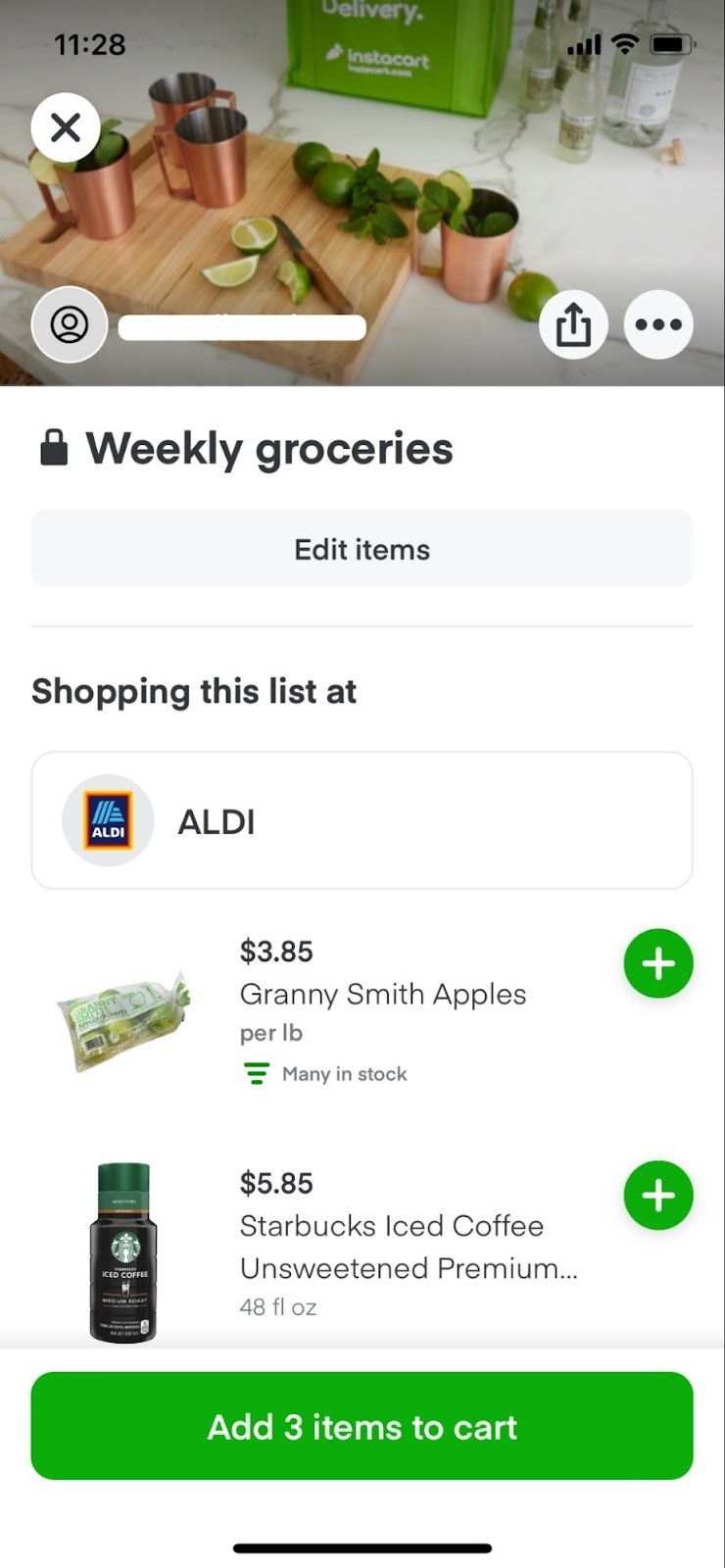
Family Account Sharing
Everyone in your family account can add items to the Shopping List.
You'll see initials next to items to know who added what.
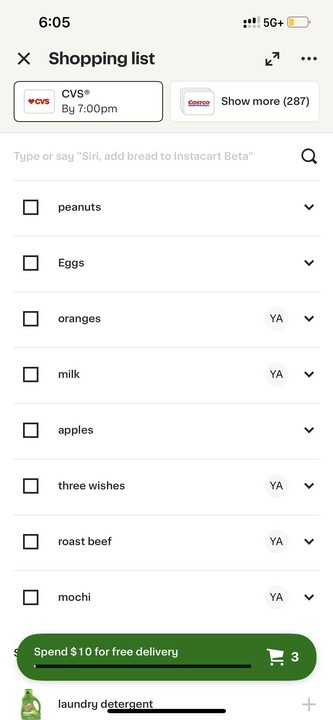
Saved Lists
Saved Lists let you create reusable lists you can share with friends and family.
Two types:
- Private lists - Not searchable. Only you can find them. 1 store only.
- Public lists - Searchable by others. Can include multiple stores.
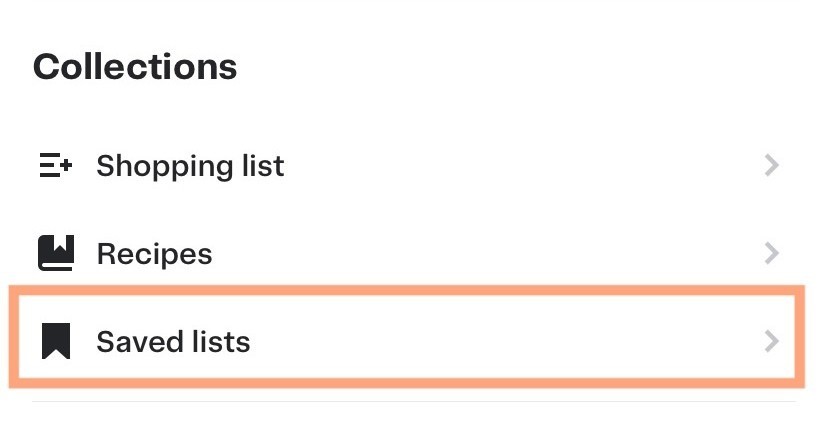
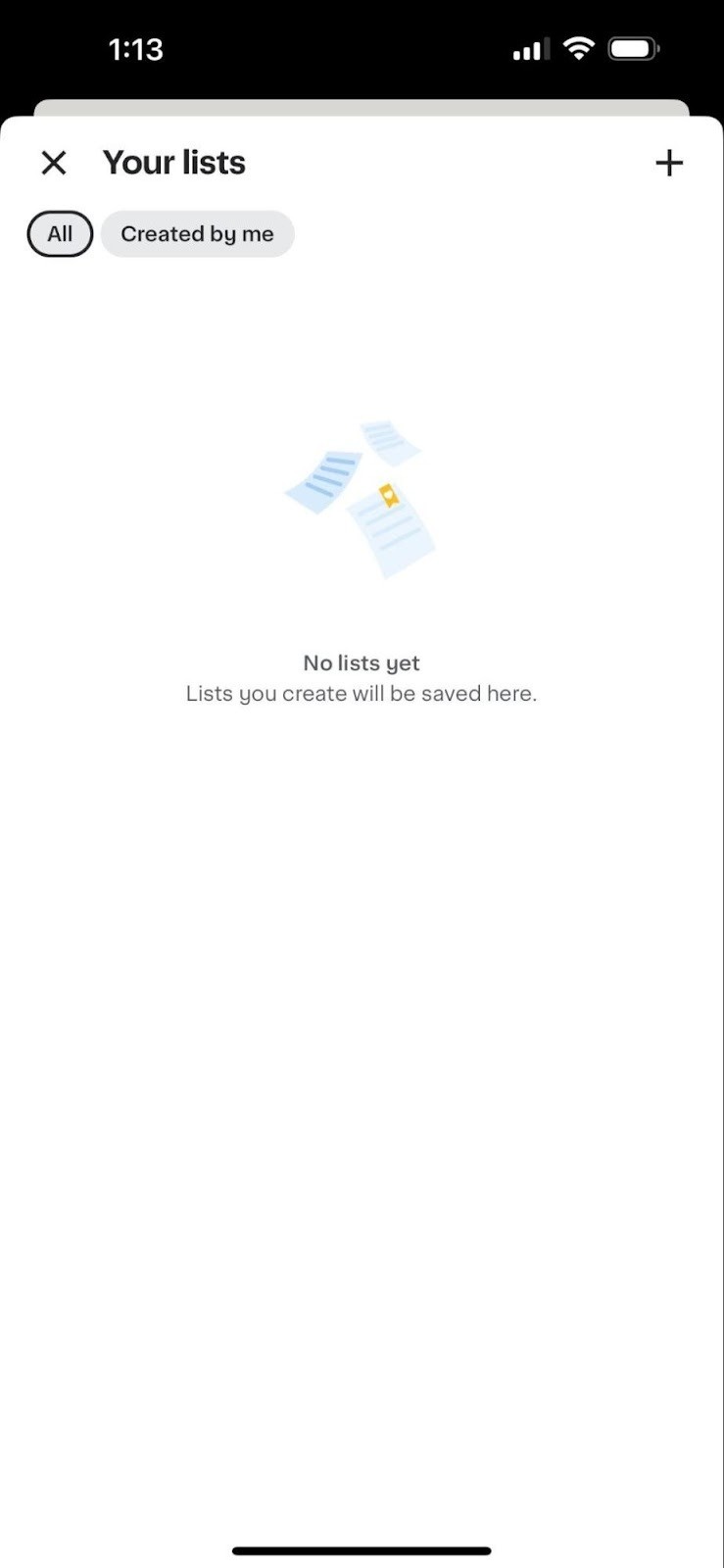
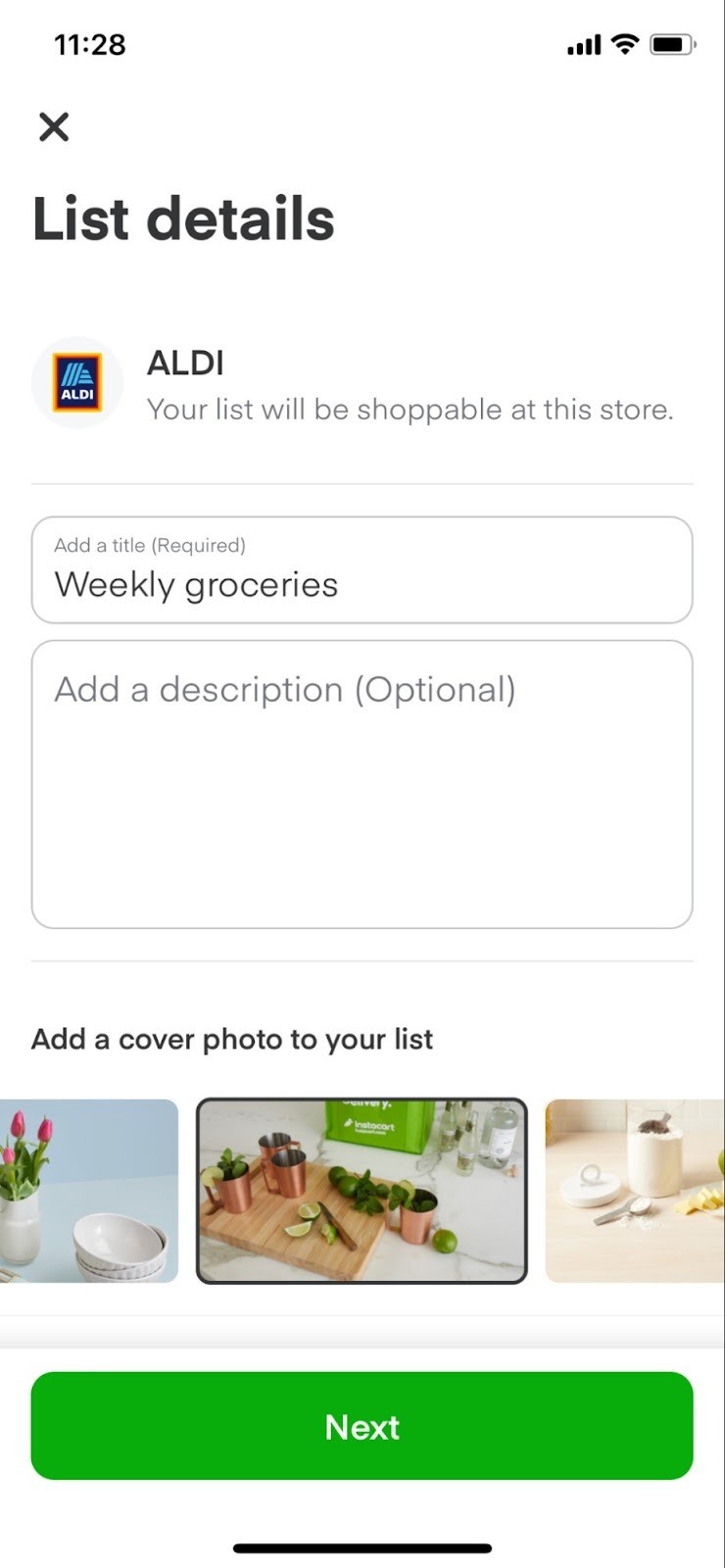
Create a Saved List
|
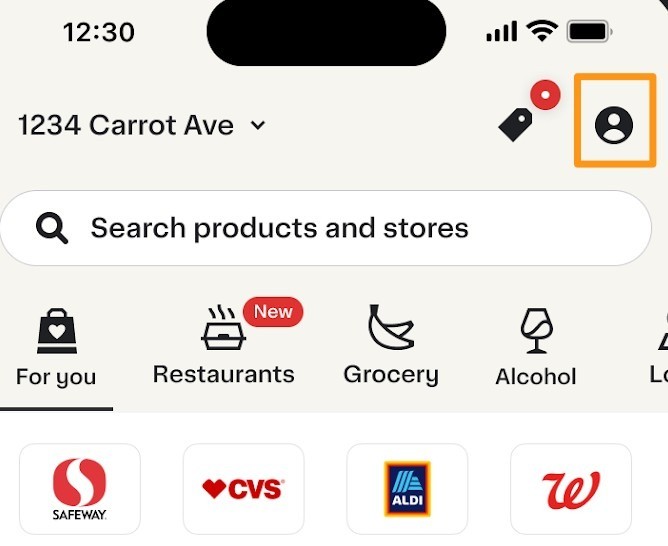
Tap the Account icon. |
|
|
Select “Saved Lists” under Collections. |
|
|
Tap the + icon in the upper right corner. |
|
|
|
|
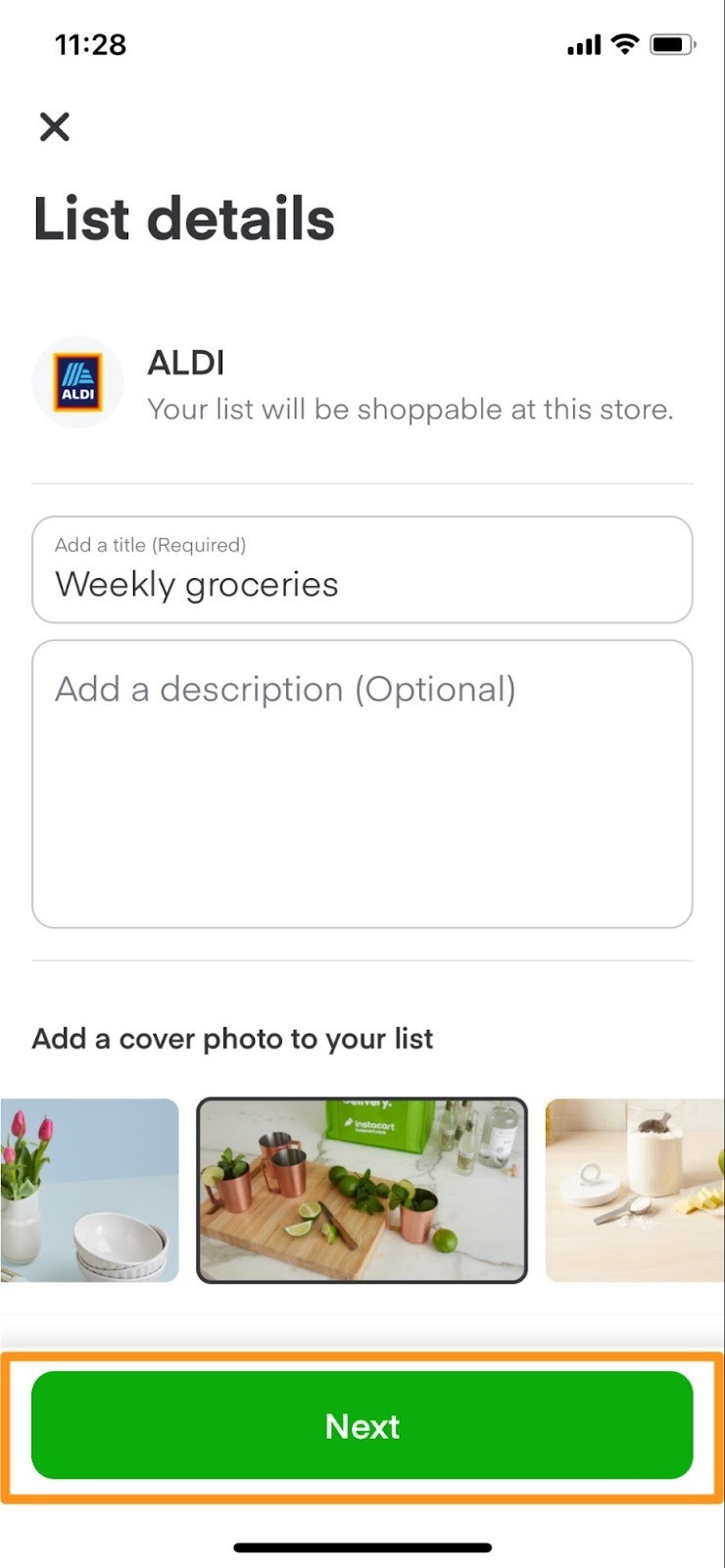
Tap Next to add items to your list You can add up to 30 items per list |
|
|
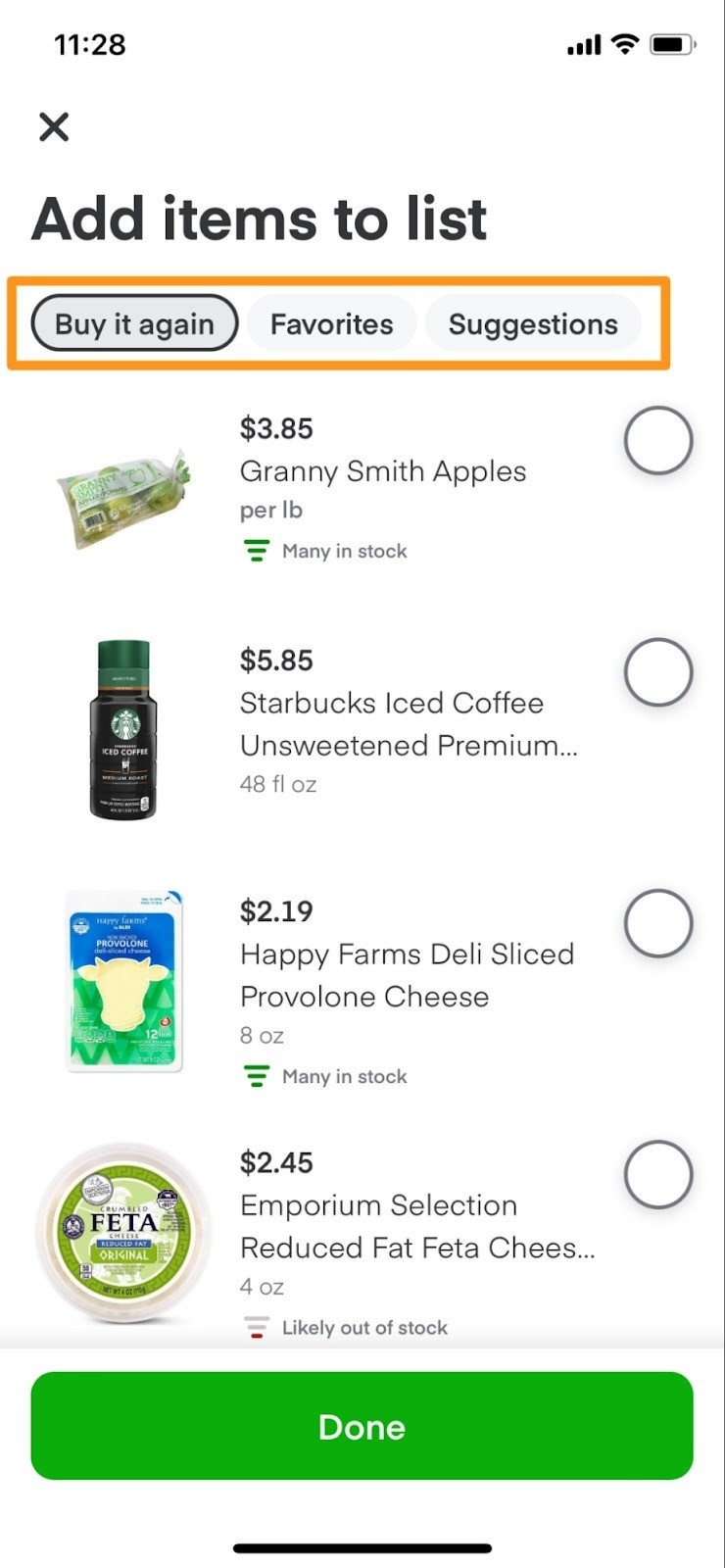
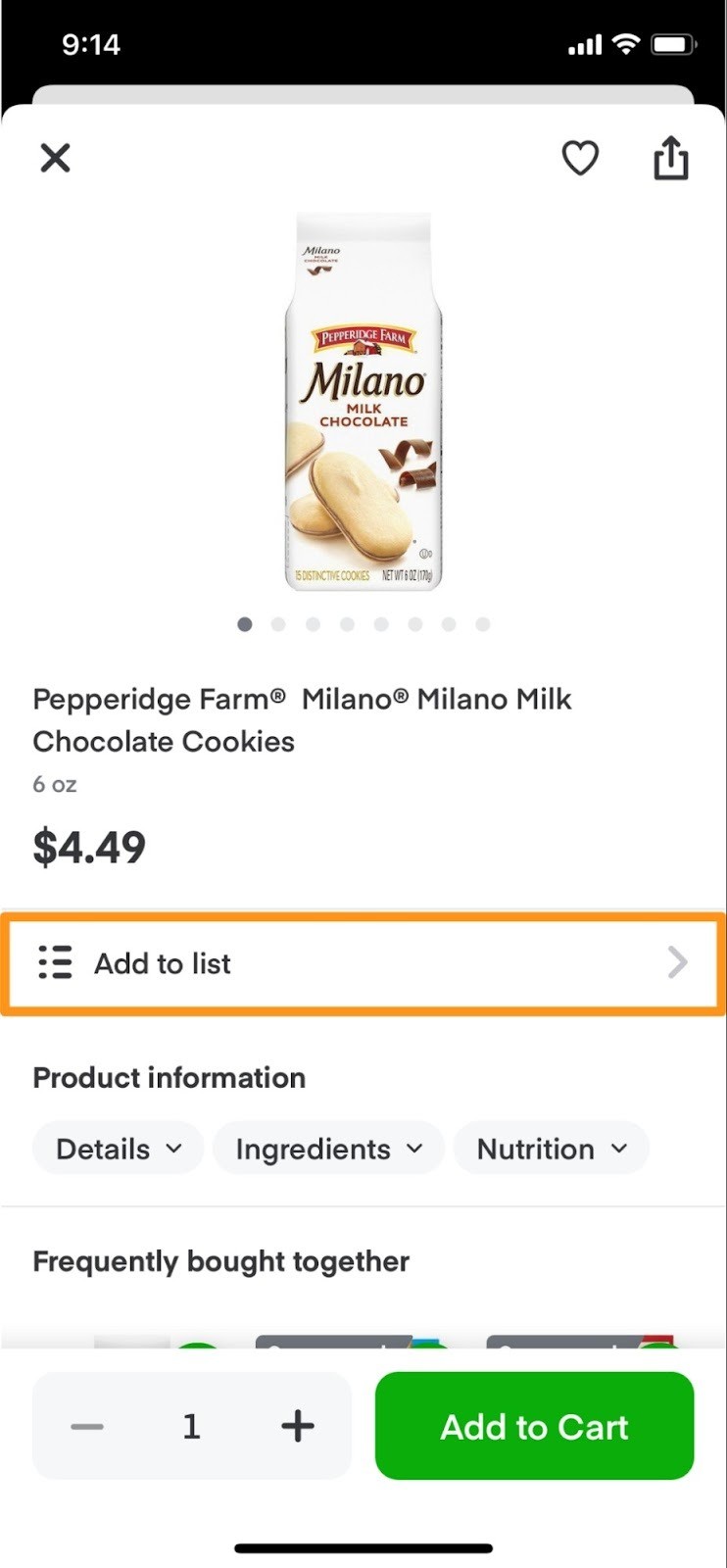
You can choose items from:
|
|
|
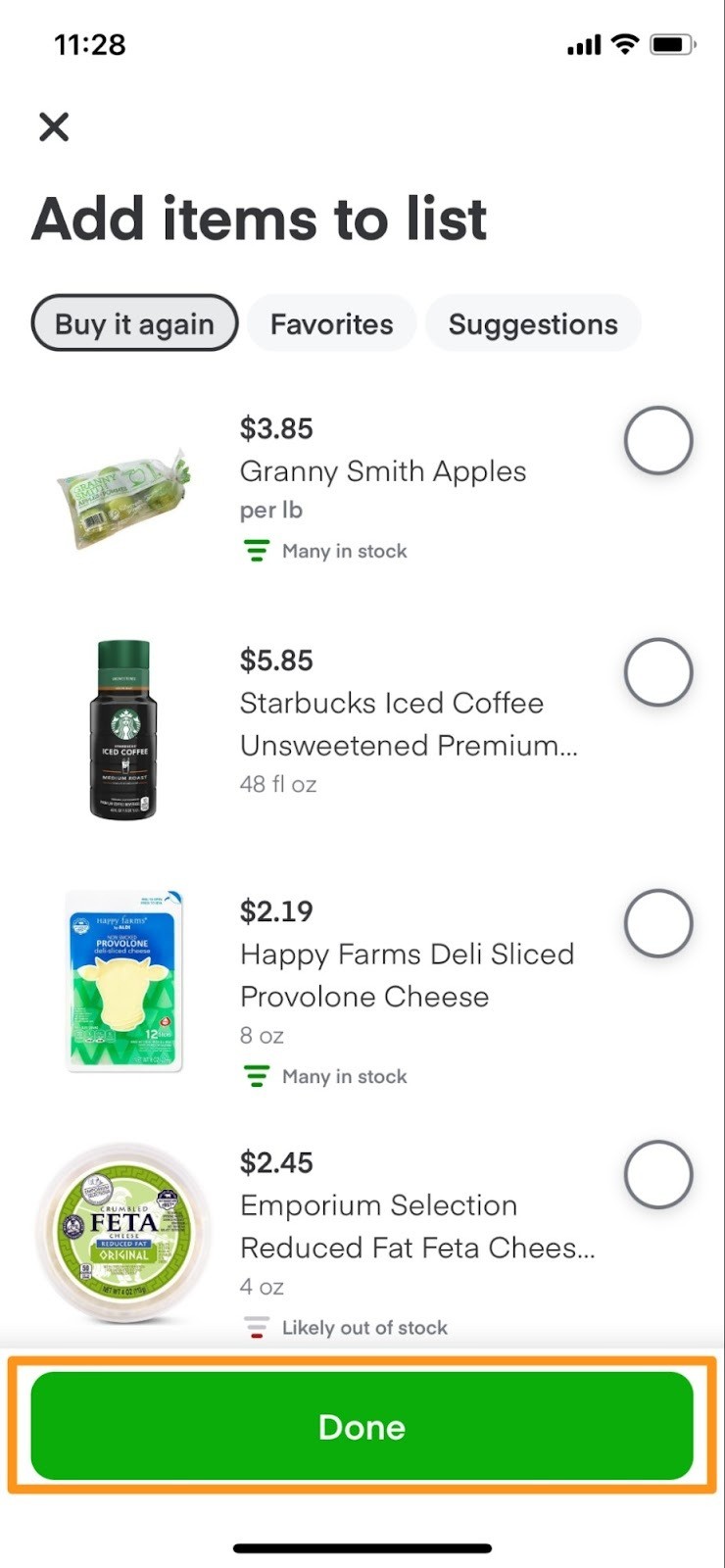
Tap Done when finished. The list items are saved under Your lists. |
|
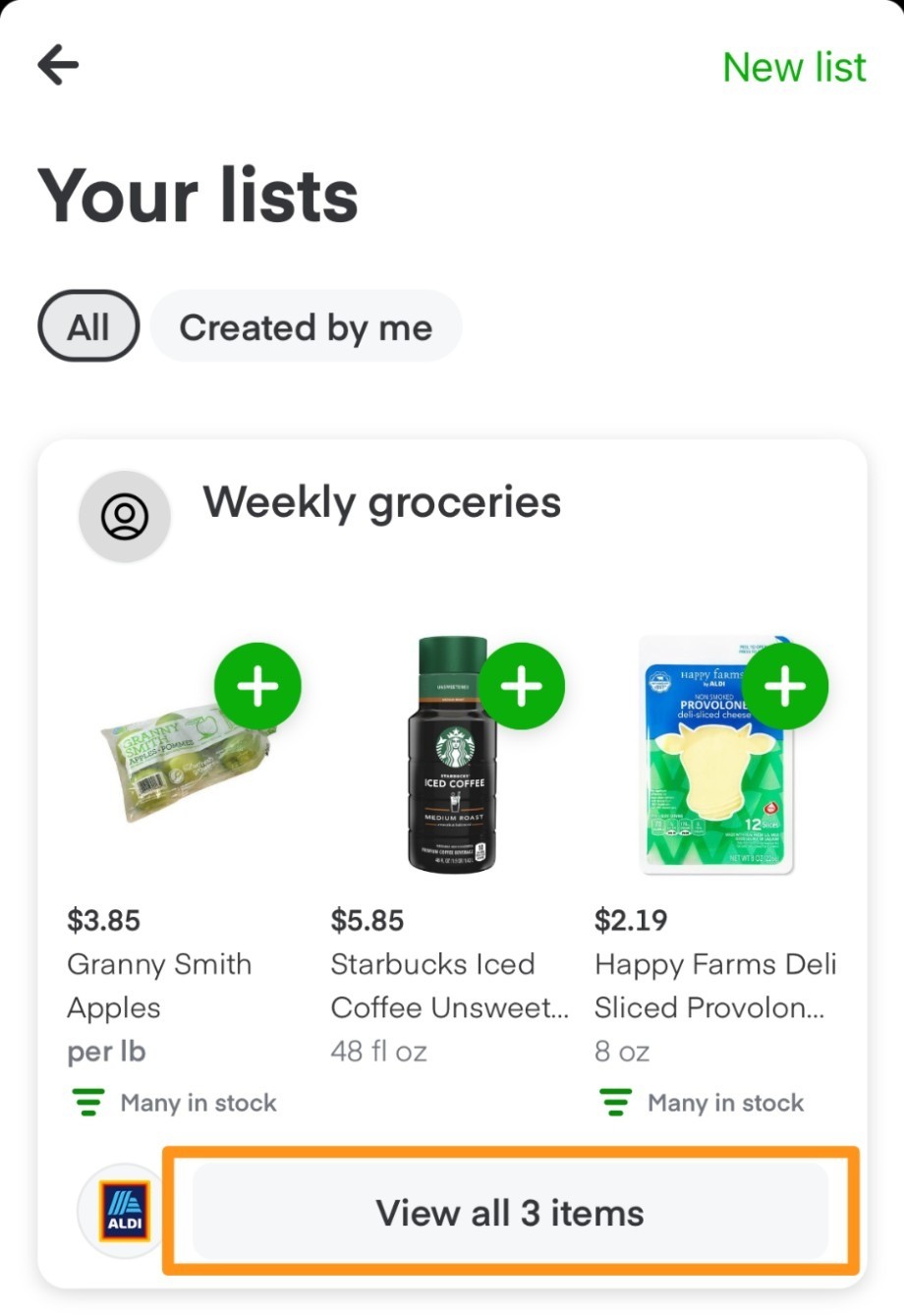
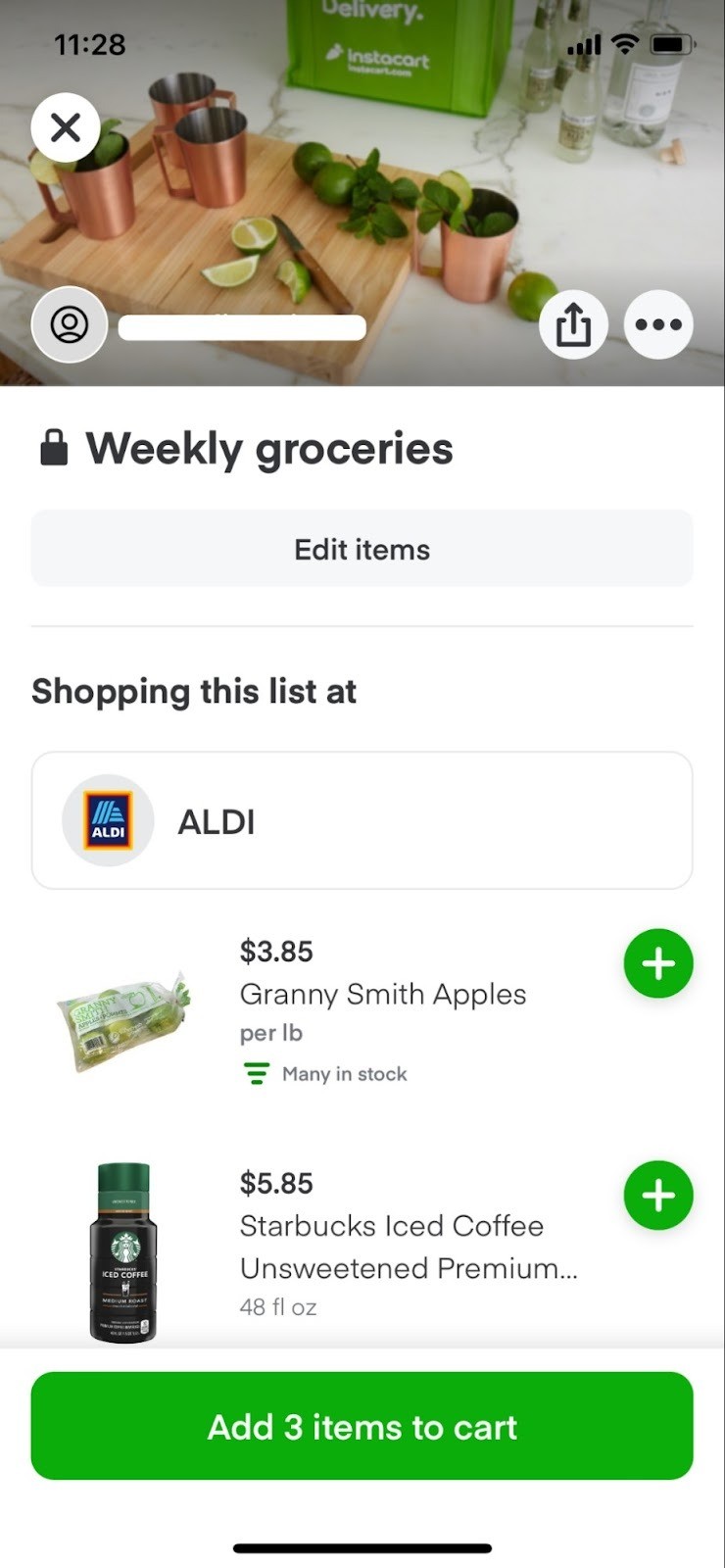
Add Saved List Items to Your Cart
You can easily move items from a list to your cart.
|
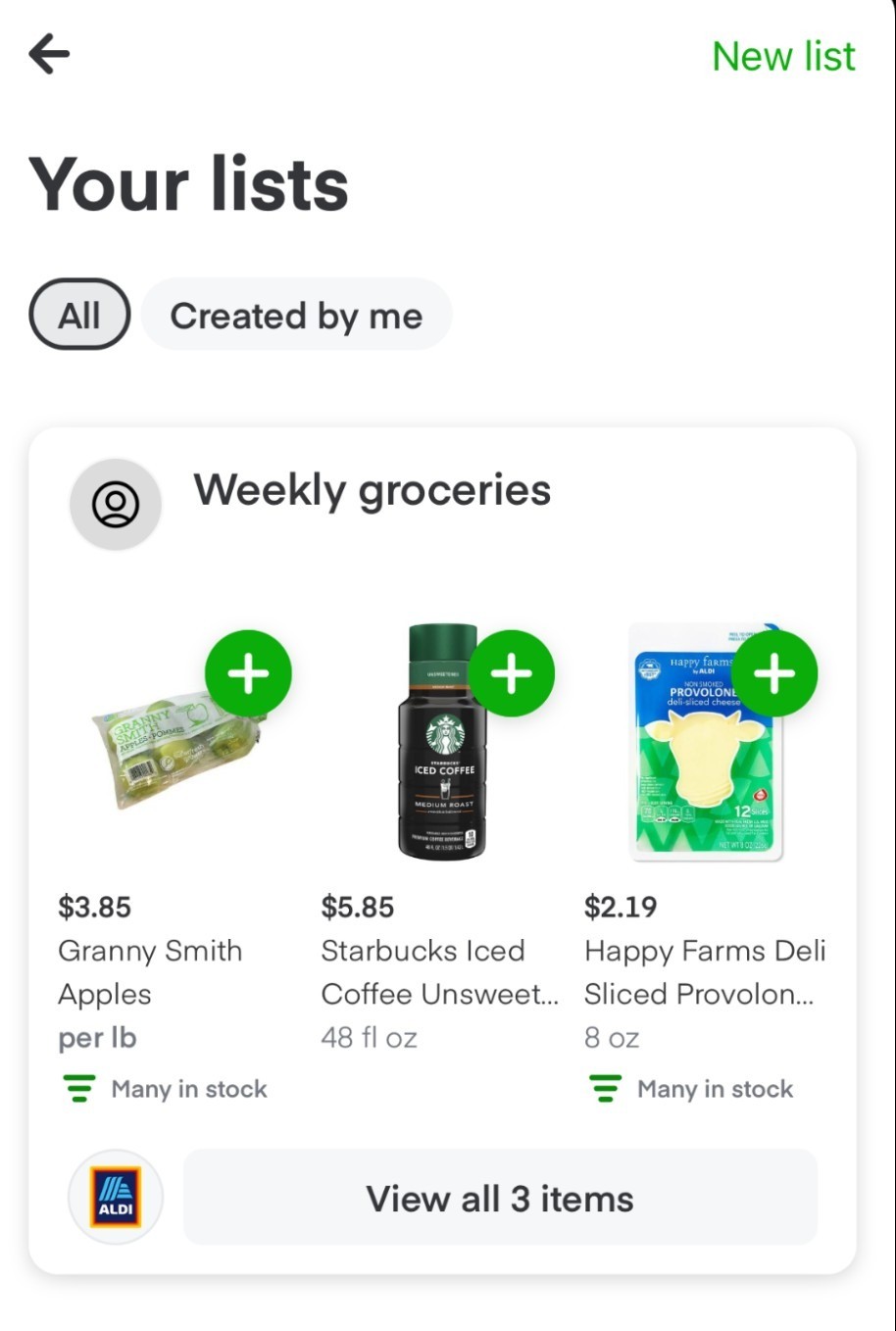
Select the list that you want to add items from |
|
|
Tap View all [# of] items |
|
|
You can choose either—
|
|
Features coming soon
- Android and web support - Shopping List features will be available on Android and web soon.
- "Hey Google" support - Voice commands for Android users coming in a future update.
- Auto-sync with Reminders - Automatic syncing with Apple Reminders app coming soon.
Frequently asked questions
Q: What's the difference between Shopping List and Saved Lists?
A: Shopping List is your quick, personal list for weekly shopping. Saved Lists are reusable collections you can share and use for recurring orders.
Q: Will the app sync with my Apple Reminders automatically?
A: Not yet. You need to manually import from Reminders for now. Auto-sync is coming in a future update.
Q: What if my photo is blurry or the app can't read it?
A: The app will tell you "No items found. Try again or add items another way." Tap "Retake image" and try with better lighting or a clearer photo.
Q: Can I take a photo of a recipe?
A: Yes! You can photograph printed recipes, screenshots of recipes, handwritten lists, or even pantry items you want to buy.